



Fiber internet for home and business
100 Mbps fiber internet from 25 AZN
25 AZN for home and 30 AZN for business. Check your coverage, send your phone number and get connection timing from our team.
1 dayconnection plan
24/7technical support
TV +6home add-on
Area and phone number are enough to start. We usually call back within 15 minutes.
940
Mbit/s — canlı fiber sürəti
Connection request in 1 minute
Send your area and phone number. Our team will confirm technical availability and connection timing with you.
0
Uptime
0
Average ping
0
Network capacity
0
Active subscribers
Core offers
3 main plans that keep the decision simple
We surface the most practical plans first. The full tariff table stays below.
Home internet
100 Mbit
25 AZN / ay
Base package for daily usage, video and home Wi-Fi.
4K TV
Gaming
Streaming
Send
Family fit
Home full bundle
150 Mbit
40 AZN / ay
For families that want internet, TV and phone in one bundle.
4K TV
Gaming
Streaming
Send
Business full bundle
100 Mbit
50 AZN / ay
Office package with waiting-area TV and fixed phone line.
4K TV
Gaming
Streaming
Send
Full tariff table
Services
Why Super Optik?
Our own fiber network
End-to-end own infrastructure — stable speed, low latency.
TV + Internet + Phone
Everything on one line, one account, one payment.
24/7 technical support
Local team, fast dispatch, remote diagnostics.
Reliable payment
Terminal, online and automatic payment — your choice.
Fiber axını
The journey of the fiber light signal
From the data center to your home — every step on our own infrastructure.
BackboneMagistral
POPRegional qovşaq
OLTOptik terminal
SplitterBölücü
ONTEv modemi
EvSiz
Coverage
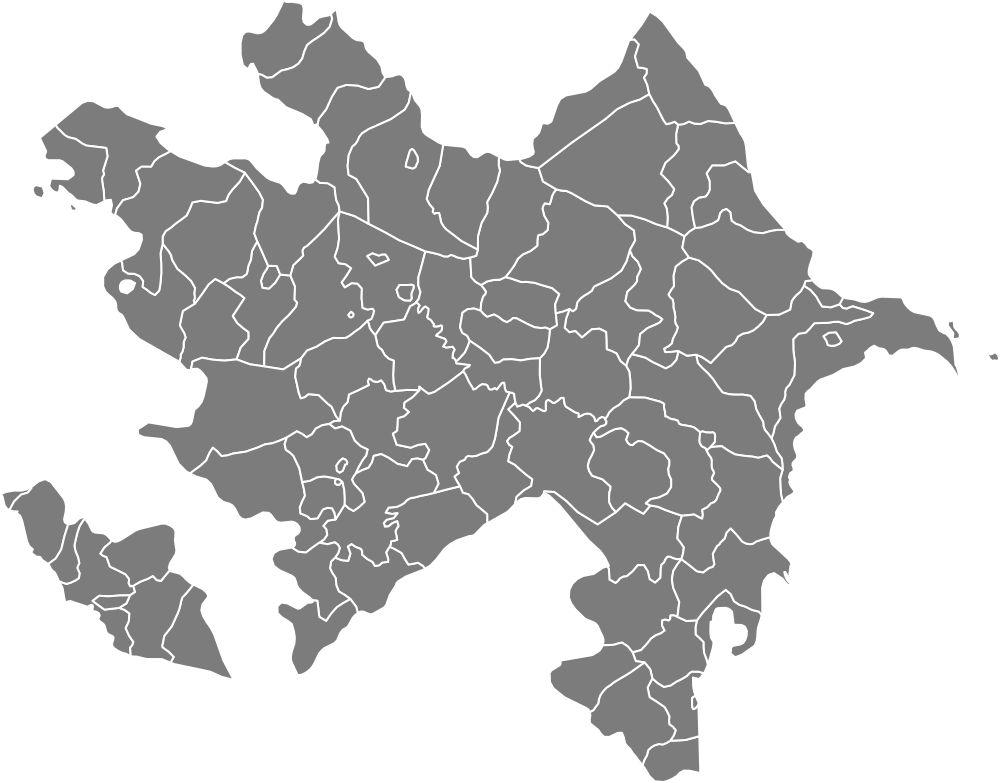
Our fiber network is expanding
Active service across Baku and regions. Type your address — we will check coverage.
AstaraMasalliLankaranNeftchalaIsmayilliNizamiSabunchuSurakhaniAbsheronKhataiBinagadiKurdakhaniPirshagiMehdiabad
Support center
Detailed explanations and self-service blocks
Password reset guides by modem brand, an expanded FAQ and direct contact channels are gathered here.
Change Wi-Fi password
The control panel differs by modem brand, but the main steps are usually similar.
BDCOM modems
Use 192.168.123.1 to access Wi-Fi settings on BDCOM modems.
- Open
192.168.123.1in your browser. - Enter
adminas username andsuper&123as password. - Open the WLAN or Wi-Fi section.
- Update the SSID and password fields with the new Wi-Fi name and password.
- Click
ApplyorSaveand reconnect your devices.
HSGQ modems
HSGQ modems use fixed login details and the Wi-Fi password can be changed in a few steps.
- Open
192.168.1.1in your browser. - Log in with username
telecomadminand passwordadmintelecom. - Open the Wireless or WLAN section.
- Update the SSID and WPA key separately for 2.4 GHz and 5 GHz.
- After pressing
Apply, reconnect devices with the new password.
TP-Link modems and routers
TP-Link devices let you change the Wi-Fi name and password through a short control path.
- Open
192.168.1.1in your browser. - Log in with
admin / admin. - Go to Wireless Settings or Basic Wireless.
- Update the Wi-Fi name and password.
- Click
Saveand reconnect your devices.
Huawei modems
On Huawei modems, the Wi-Fi name and password are updated from separate 2.4 GHz and 5 GHz sections.
- Open a browser on a device connected to Wi-Fi and go to
192.168.100.1. - Use
telecomadminas username andadmintelecomas password. - Open
Advanced, thenWLAN, and then2.4G Basic Networkfrom the left menu. - Change the Wi-Fi name in
SSID Name, update the password inWPA PreShareKey, and clickApply. - After the device reconnects, repeat the same steps in
5G Basic Networkfor the 5 GHz settings.
Frequently asked questions
What should I do if my internet speed is low?
First restart the modem for 10-15 seconds and then test the speed over cable if possible. If Wi-Fi looks weak, thick walls, crowding on 2.4 GHz, too many active devices or modem placement can be the reason. If the wired result is normal, the issue is usually in the Wi-Fi environment.
What is the difference between 2.4 GHz and 5 GHz?
2.4 GHz reaches farther and passes through walls more easily, but it is slower and usually more crowded. 5 GHz delivers higher speed and better latency, but the signal weakens faster with distance. Use 5 GHz in nearby rooms and 2.4 GHz in distant rooms.
How can I pay and what happens if payment is delayed?
Payments can be made through the online payment page, banks and partner channels. If payment is delayed, service may be limited or suspended. After payment, restoration is usually completed within a short time. If delay continues, share the receipt or payment date with the support team.
What should I do if I forgot the Wi-Fi password or the signal is weak?
First check the original data on the modem sticker. If the password was changed, the best way is to set a new one from the modem panel. If the signal is weak, place the modem in a central location and keep it away from metal surfaces or behind a TV. In larger homes, an access point or mesh solution is usually better.
Direct contact
If you could not resolve the issue, contact our team directly.
+994 12 525 88 11 Apply now
TVNET channels
TV channels delivered through TVNET
The list is seeded from TVNET’s public channel page. The carousel moves automatically and you can search any channel by name.
News and updates
Useful information feed for customers
A clean structure that separates internet, system security and crypto market topics.
3 important in-home checks for stable speed on fiber service
Modem placement, cable condition and Wi‑Fi channel choice directly affect user experience. A short checklist helps separate line issues from home setup issues.
Where is the best place to put a Wi‑Fi router at home?
Putting the router on the floor, in a corner or behind the TV reduces coverage. A central and open placement often improves the real speed of the same package.
Why do concrete walls weaken Wi‑Fi signal?
Reinforced concrete and dense walls absorb 5 GHz signal much faster. In many homes the real issue is not the tariff, but the physical environment around the router.
How do TVs, microwaves and other devices interfere with Wi‑Fi?
Bluetooth accessories, microwave ovens, wireless cameras and some smart TVs can crowd the 2.4 GHz space. Router channel and placement choices matter more than many users expect.
How many Mbps are enough for how many devices?
A flat with two phones and one TV does not need the same plan as a busy home with ten devices. Choosing the right speed depends on simultaneous usage, not just on price.
FTTH vs classic connection: which model fits which user?
Fiber to the home gives better stability, lower latency and more room for future speed upgrades. We compare the practical differences in plain language.
A minimal security package to reduce weak points in office networks
Strong password policy, backup discipline and limited access create the first practical protection layer for small businesses.
Why are licensing and update plans important for cameras, servers and network devices?
Stable system operation depends not only on installation, but also on updates, patch cycles and controlled licensing.
Why should you change the default password in the router admin panel?
Leaving the default admin password unchanged keeps both home and office networks exposed. A few simple steps protect Wi‑Fi settings and device access.
* The crypto section is for information only and is not investment advice.
Pay
Convenient payment channels
Pay from any platform you prefer — it posts to the system automatically.





Support
Contact us
Questions, connection or technical support — we reply quickly.